You are hereOrbit
Orbit
Orbit
In this Section are described the parameter necessary to Mission Analysis.
In particular it is possible do divide the screen of Figure 1 in four parts:
1. In the top left it is possible to save data relative to arcs and orbits (compositions of different arcs)
2. In the top right a calendar is present
3. In the bottom left it is possible to insert data relative to the arcs
4. In the bottom right it is possible to insert and save data relative to the planet
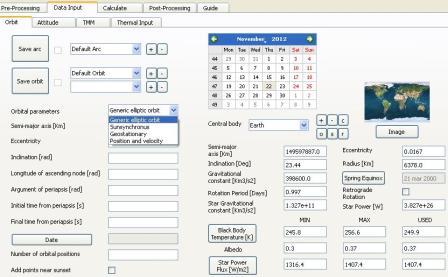
Figure 1
Data Storage of arcs and orbits
This Section is composed of 8 Buttons, 2 Check Boxes and 4 Combo Boxes
With the first Button in the high it is possible to generate a new arc.
Once pressed, you must insert in the relative Combo Box the name of the arc created.
With the first – Button in the high, it is possible to delete an arc, a Dependence can be detected.
With the first Combo Box from high, it is possible to display data relative to the arc created previously.
If the relative Check Box is checked, the arc has been saved previously and has data associated to it.
With the “Save Arc” Button, it is possible to save data inserted, a Dependence can be detected.
With the sceon + Button from high, it is possible to generate a new orbit.
Once pressed, you must insert in the relative Combo Box the name of the orbit created.
With the second – Button from the high, it is possible to delete an Orbit, a Dependence can be detected.
With the Second Combo Box from the high, it is possible to display data relative to the orbit created previously.
If the relative Check Box is checked, the arc saved previously has data associated to it.
With the “Save Orbit” Button, it is possible to save data inserted, a Dependence can be detected.
With the third + Button from the high, it is possible to insert in the relative Combo Box the arc selected in the first Combo Box from the high, a Dependence can be detected.
Precondition for this operation is that the first Check Box from the high is checked, otherwise an error is shown.
The same arc can be insrted more than once in the third Combo Box from the high.
With the third – Button from the high, it is possible to delete from the relative Combo Box the arc selected in the first Combo Box from the high, a Dependence can be detected.
If the Arc is not present in the Combo Box, the prsssure of the – Button is neglected.
If the Arc is present more than once, only the last insertion is removed.
Data Insertion of Arcs
In this Section is present an unique Combo Box.
The structure of the Section depends by the text selected with this Combo Box.
4 choices are possible:
1. Generic elliptic orbit
2. Sunsynchronus
3. Geostationary
4. Position and Velocity
A part of the Section is independent from the choice effectuated.
In particular it comprehends the Line Edit “Initial Time from Periapsis [s]”, “Final Time from Periapsis [s]”, “Number of Arc positions”, the Check Box “Add points near Sunsets”, the Button “Date”.
The three Line Edit must conatin a value convertible in number respectively greater or queal to 0, greater than the numeric value of the Line Edit ”Initial Time from Periapsis [s]” and greater tha 0, otherwise an error is shown.
The first two Line Edit, in the case in which “Position e Velocity” is selected, are sobstituded by an unique Line Edit “Arc Duration [s]”, whose value must be able to be converted in a number greater than 0, otherwise an error is shown.
The Check Box allows to add two Orbital Positions for each passage of the Satellite from the light to the shadow and vice versa.
The Date Button has effect if a date was selected in the calendar.
In Table 1 are shown the Inputs, variable as a function of the choice effectuated.
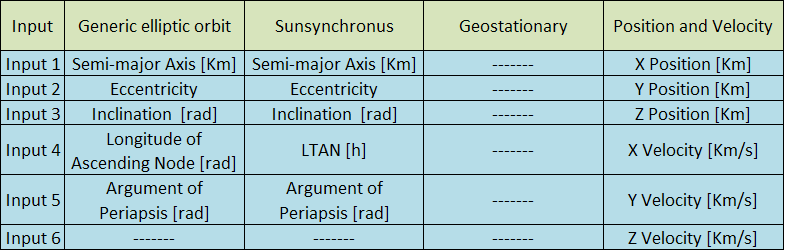
Table 1
If Inputs are not convertible in a number, an error is shown.
If the Semi-Major Axis is less than 10 Km, an error is shown.
If the relation 0<=Eccentricity<=1 is not verified, an error is shown.
If the Inputs measured in Radiants don’t respect the relation 0<=input<=2π, an error is shown.
If the relation 0<=LTAN<=24 is not verified, an error is shown.
If the orbit is not definable based on the Inputs or intersects the sphere of the planet, an error is shown.
Data Insertion and Storage of Planet
Scope of this Section is to choose the Planet, to modify and save its data, to create a Set of data relative to a celestial body.
Default are installed data relative to Earth, Mercury, Venus, Mars, Jupiter, Saturn, Uranus, Neptune and Sun (not supported).
Data inserted are:
1. Semi-major Axis [Km]
2. Gravitational Constant [Km3/s2]
3. Rotation Period [Days]
4. Star Gravitational Constant [Km3/s2]
5. Radius [Km]
6. Star Power [W]
7. Black Body Temperature (Min,Max,Used) [K]
8. Star Power Flux (Min,Max,Used) [W/m2]
9. Inclination [deg]
10. Eccentricity
11. Albedo (Min,Max,Used)
12. Spring Equinox [Date]
13. Retrograde Rotation [True/False]
14. Image
Data identified in the list with numers between 1 and 8 must be convertible in number grater than 0.
For the datum 9, the relation 0<=Inclination<=360 must be verified.
For data 10 and 11, the relation 0<=datum<=1 must be verified.
To insert the date (datum 12), you must select it in the calendar before the pressure of the relative Button.
Datum 13 allows the simulation of orbits around planet with retrograde motion, as Venus.
Datum 14 allows to introduce Images that will be used in the Post-Processing Section.
These images are saved in the file .spz during Session Storage.