You are hereProperties
Properties
Properties
In this Section is explained how to create a Thermal Model.
It is divide in two parts:
1. Instances upward
2. Materials downward
The first Part is divided in three Sub Parts:
1. In the top left: insertion and storage of optional data of “Structure Position”
2. In the bottom left: storage of Instances data
3. To the right: insertion of Instances data
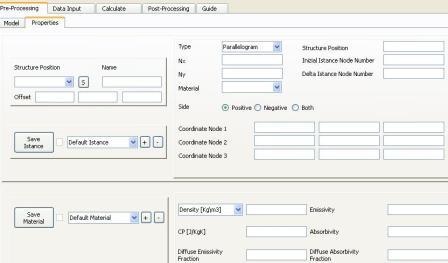
Figure 1
MATERIALS
In this Part is explained how to insert and save Material data.
In the left Sub Part there are 3 Buttons, a Check Box and a Combo Box.
With + Button it is possible to generate a new Material.
Once pressed, you must to insert in the Combo Box the name of the new Material.
With – Button, it is possible to delete a Material, a Dependence can be detected.
With the Combo Box, it is possible to diplsy data relative to a Material created previously.
If the Check Box is checked, the Material has been saved previously and has data associated to it.
With “Save Material” Button it is possible to save inserted data, a Dependence can be detected.
In the right Sub Part, there are a Combo Box and 6 Line Edit.
5 coices are possible to define the Mass of Thermal Nodes through the Combo Box:
1. Density [Kg/m3]
2. Density [Kg/m2]
3. Mass per Node
4. Mass per Istance
5. Mass and Cp in TMM
In the fifth case, values of Mass and CP of Thermal Nodes can’t be inserted.
In other cases, fields of the two Line Edit relative to Mass and CP must be convertible in numbers greater than 0, otherwise an error is shown.
Fields of other 4 Line Edit must be convertible in numbers satisfyng the relation 0<=Input<=1, otherwise an error is shown.
Data storage of Instances
In this Section are treated the modality of data storage of Instances.
An Instance is a set of Faces characterized by the lie in the same plane.
There are 3 Butons, a Check Box and a Combo Box.
With + Button, it is possible to create a new Instance.
Once pressed, you must insert in the Combo Box the name of the new Instance.
With – Button, it is possible to delete an Instance, a Dependence can be detected.
With the Combo Box, it is possible to diplay data relative to an Instance created previously.
If the Check Box is checked, the Instance has been saved previously and has data associated to it.
With the “Save Instance” Button, it is possible to save data inserted, a Dependence can be detected.
Data insertion of Instances
In this Section are treated the insertion modalities of data relative to Instances.
There are 2 Combo Boxes, three Radio Buttons and a number of Line Edit dependent on choices effectuated through Combo Boxes.
The first Combo Box allows the choice of the type of Instance, 4 choices are possible:
1. Parallelogram
2. Quadrangle
3. Triangle
4. Circle
In the case 2, you must define 4 Geometric Points to define the Instance, in the other cases only Geometric Point are needed.
Line Edit relative to Geometric Points are 3 for each Geometric Point.
Fields of Line Edit relative to Geometric Point, must be convertible to number, otherwise an error is shown.
Geometric Points can’t be coincident, otherwise an error is shown.
For each possible triplet of Geometric Points, collinearity cause the show of an error.
In the case “Quadrangle”, other two conditions must be verified:
1. Four internal angles less than 180°
2. Four Geometric Points lying on the same plane
In the second Combo Box are loaded automatically saved Material.
If a Material is saved:
1. This Material is present in the second Combo Box
2. If the Material is selected in the Combo Box of the Material Section than the relative Check Box is checked
If the second Combo Box doesn’t contain any Material, an error is shown during Instance Storage.
If in the second Combo Box is selected a Material to which has been chosed a definition of the Mass through the “Density [Kg/m3]” option, then Line Edit “Thickness [mm]” is shown.
The field of the Line Edit “Thickness [mm]” mast be convertible to a number greater then 0, otherwise an error is shown.
The three Radio Buttons are mutually exclusive.
If the Radio Button “Positive” is selected, the side of the Faces in the direction of the normal to the Faces is active.
The direction of the normal to the Faces is (P2-P1)^(P3-P1) for the first three type of Instance, (P2-P1)^((P3-P1)^(P2-P1)) for the fourth type.
If none of the three Radio Button is selected, an error is shown.
Fields Nx and Ny, if empty assume the value 1, otherwise must be convertible in numbers greater or equal to 1.
The field “Initial Istance Node Number”, if empty assumes the value 0 (automatic calculation), otherwise must be convertible in a number greate or equal to 0.
The filed “Delta Istance Node Number”, if empty assumes the value 1, otherwise must be convertible in a number greater or equal to 0 (0 for a unique Thermal Node):
The field “Structure Position”, if empty assumes the value 1, otherwise must be convertible in numbers interspersed by points (eg. 2.5.3).
Optional data insertion and storage of Structure Position
The section is composed by a Combo Box, a Button and 4 Line Edit.
The tree structure of the Thermal Model is loaded automatically in the Combo Box.
To each branch of the tree it is possible to associate a Name and a Offset.
The Offset defines the components of the O’-O, vector, where O’ is the origin of the System of Reference of the Branch selected in the Combo box, while O is the origin if the System of Reference of the branch “Father”.
Default the Offset is 0 and the Name is an empty string for branches that are non Instances.
If with the Combo Box is selected a branch that i san Instance, the field “Name” is filled with the name of the Instance.
It is therefore possible to change the names of the Instances within this Section.
The Combo Box in the Data storage of Instances Section, updates automatically with the new name of the Instance.
With the Button it is possible to save data inserted in the four Line Edit.
Selecting a branch with the Combo Box, the name and the offset of default or saved previously are displayed.